Track your progress
The Stats tab turns your study history into a clear picture — how much you're reviewing, how well it's sticking, and which subjects need attention.
-
Read the headline numbers
Open the Stats tab. Up top you'll see your reviews, retention (how often you press Good/Easy vs Again/Hard), your study streak, and practice accuracy from the Practice tab.
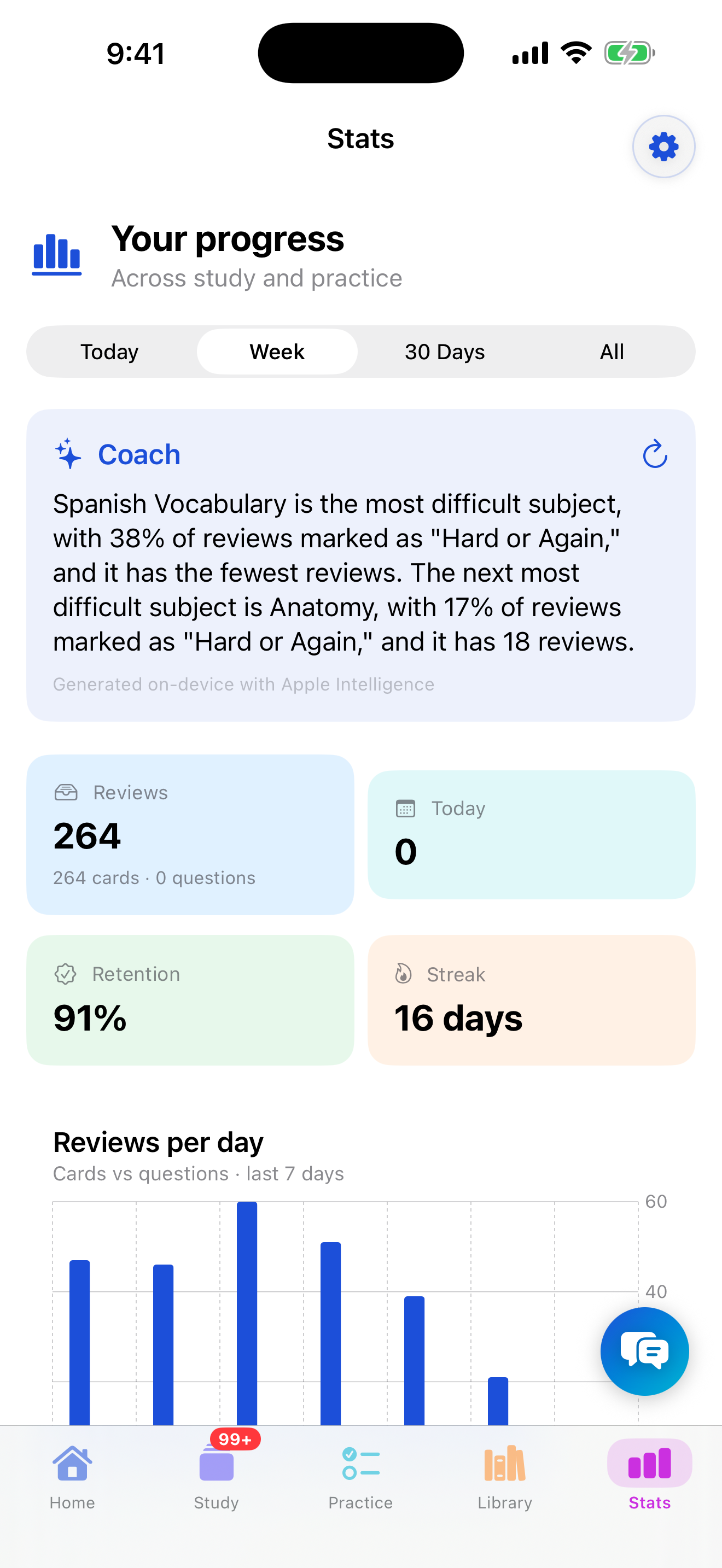
Reviews, retention, streak, and accuracy at a glance. -
Change the time range
Use the time filter to switch between recent windows (e.g. last 7 or 30 days) and your full history. The chart and numbers update to match.
-
Drill into a subject
Tap any subject to see its own breakdown — reviews done and how hard it's been. This is the quickest way to spot a topic that's slipping before it costs you points.
-
Let the coach interpret it
Stats includes a short, on-device coach insight that reads your numbers and suggests where to focus. For a back-and-forth, open the AI coach and ask.