The resource Library
Keep your study material right next to your decks. The Library holds PDFs and documents in nested folders, so your notes and references are a tap away while you study.
-
Open the Library
The Library tab shows your folders and files as a grid of cards — a mix of built-in resources and anything you add. Tap a folder to drill in; each card has a ••• menu.
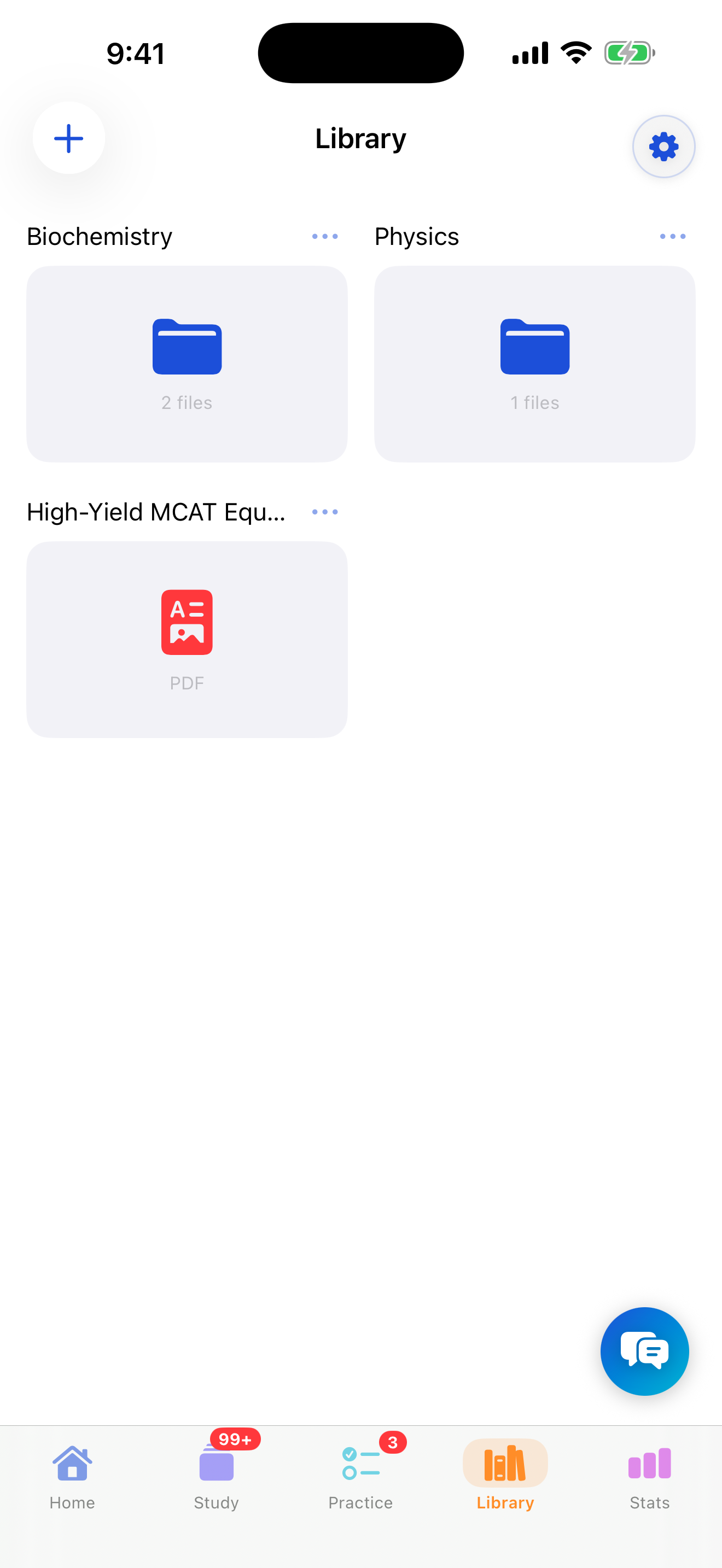
A grid of folders and files, like a file browser. -
Add a folder
Tap + (top-left) → New Folder, then name it (e.g. “Biochem notes”). Folders can nest, so you can mirror how you think about a subject.
-
Import your files
Tap + (top-left) → Import Files to bring in documents from the Files app — PDF, Word, Excel, and text files are supported. They're copied in and travel with you via iCloud.
-
Read side-by-side with your cards
Tap a file to open it. On iPad each file opens in its own window, so you can drag it to one side and review cards on the other (Split View / Stage Manager); each window has its own ✕ to close. Files are read-only in Synapse — PDFs use a built-in reader, Office and text use a quick preview, and the share button sends a copy elsewhere.
-
Organize as you go
Each card's ••• menu does Move, Rename, and Delete. Or long-press a card and drag it onto a folder to move it — just like Files or Google Drive.